Preface
If you’re here I likely convinced you to use Obsidian or you asked me “what’s that app you’re always on?” and I sent you here. Hopefully this guide will help you get started, you won’t regret picking it up!
If all this text seems overwhelming, feel free to start by installing and playing around with Obsidian yourself and coming back to use this guide as a reference.
What is Obsidian?
Obsidian at its core is a markdown editor. Yup, all it does is edit markdown files. That’s it, it just does that one thing really well. This is intentional, Obsidian is designed with the understanding that the files will outlast the tool.
The ancient temples of Egypt contain hieroglyphs that were chiseled in stone thousands of years ago. The ideas hieroglyphs convey are more important than the type of chisel that was used to carve them. — Steph Ango, CEO Of Obsidian
To read about this philosophy more click here
One day Obsidian will become defunct. When this happens your files will still exist, they are plain markdown files stored locally that anyone can access and open. I would like to pose you question, what would happen to your files if a service like Google Docs or Notion disappears?
Editor
Obsidian is at its core a markdown editor. You may be wondering “what’s markdown?”
Markdown is a text-to-HTML conversion tool for web writers. Markdown allows you to write using an easy-to-read, easy-to-write plain text format, then convert it to structurally valid XHTML (or HTML). — John Gruber, Creator of Markdown
To read more about markdown click here.
In short, you can use Obsidian as a simple text editor and Markdown provides html support and you can use certain shortcuts to stylize it. Everything in Obsidian starts and ends with the editor.
Here’s some tips to get you started:
- Use
# headingnamefor a heading. The number of #‘s is the level of heading.- i.e
# headingnameis h1 whereas## headingnameis h2.
- i.e

- Write math in Obsidian using LaTeX (prounounced «Lah-tech» or «Lay-tech»)
- Inline syntax:
$\text{your math here!}$ - New Line Equation syntax:
$$\text{your math here!}$$ - LaTeX in itself is it’s own beast which I won’t be writing about, check out this quick-start guide or just learn as you go. Although it seems intimidating, it’s much less difficult than it seems. I went from 0 LaTeX skill to taking notes live in lecture and doing homework using LaTeX.
- Inline syntax:
- Create links to notes using the following syntax
[[file]].- The link can be renamed using the syntax
[[file|Link Display Name]]
- The link can be renamed using the syntax
- Add images use the syntax
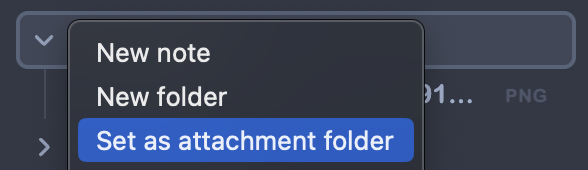
![[yourimagename.png]]].- You can copy and paste images directly into your editor as well, the image will be placed in the folder you set as the attachments folder.
- Modify the image size using
![[yourimagename.png|size (i.e 100)]].
- To link to the web use
[Link Title](https://www.yourwebsite.com/).- Link to a web image like so

- Link to a web image like so
- Create tables using the Markdown Table Syntax
- Install a community plugin like Advanced Table Editor or Markdown Table Editor, thank me later.
- Callout Blocks can be created to segment and stylize your information. They can be made into dropdown menus and configured with different icons, see more at Obsidian’s Official Article.
Example Callout Block!
Here’s an example sentence, any content can be placed in callout blocks!
Organization
One of Obsidian’s biggest selling points is its organizational capability.
Here are some of the features you may want to utilize:
- Links: Obsidian allows you to create links between your files, helping you connect ideas.
- See syntax in the editor section.
- Some applications include the Zettelkasten Method.
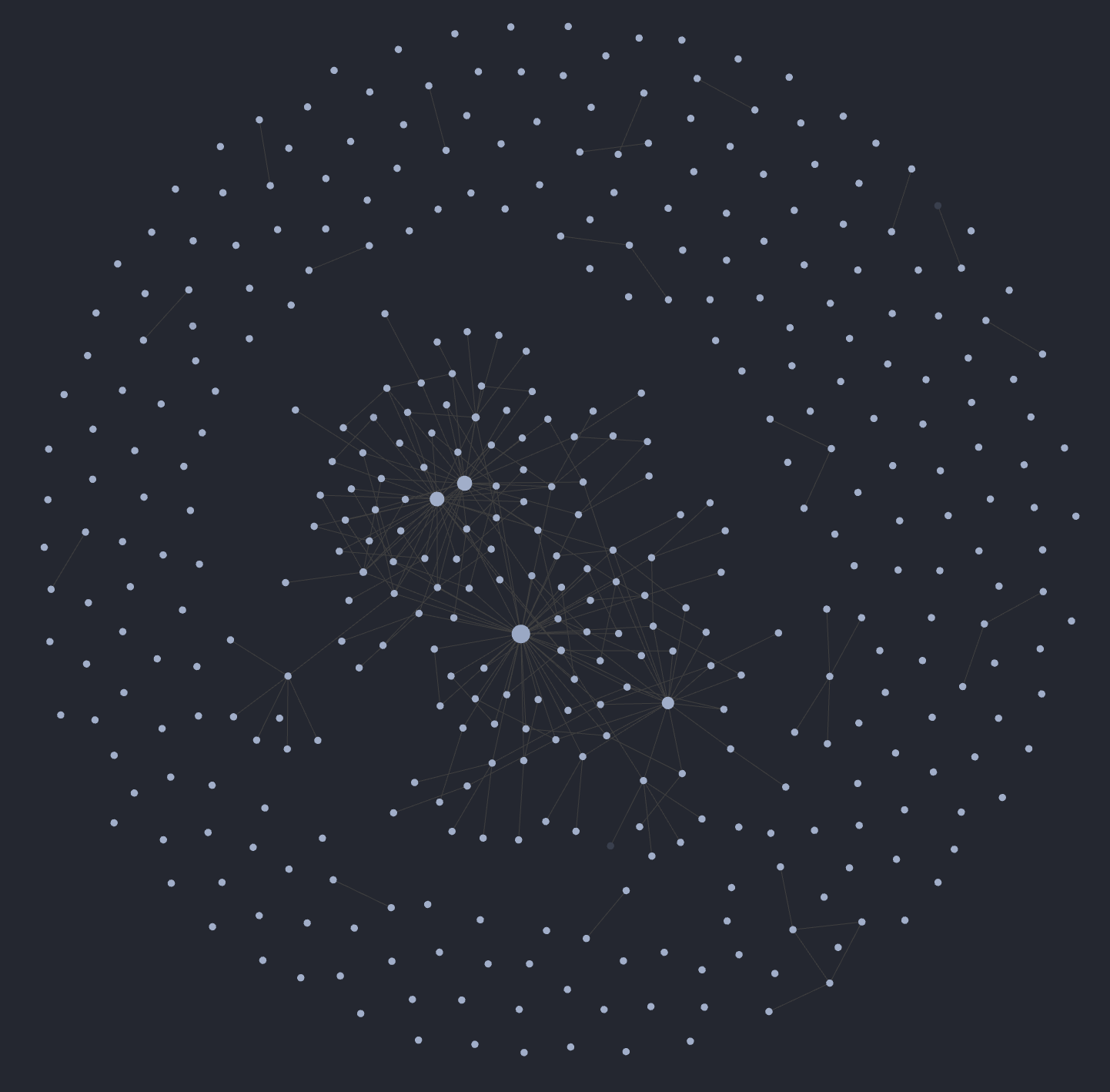
- These links can be kept track of using Obsidian’s graph feature. It’s very pretty! (but in my usecase, not very practical)
- Every note also has backlinks, helping you know what it helps define.
- Daily Notes: Obsidian allows the creation of daily notes, this is useful for keeping track of daily tasks or just writing down miscellaneous things that you do during the day.
- I highly recommend using the Calendar plugin to keep track of your daily notes.
- Folders: Just like any other file management system, it’s a great idea to use folders to organize your ideas together.
- Dataview: A plugin that allows query your notes like a relational database by their properties you set in the frontmatter.
- Tags: You can tag and search your notes by tag.
- Use the syntax
#tag
- Use the syntax
In the end, I highly recommend experimenting with different organizational formats until you figure out what’s best for YOU. You don’t (and shouldn’t) have to make use of every fancy feature just because someone online tells you to, often you may find you don’t need the extra fluff. Remember that your organizational system should work for you, not against.
What is important is you are aware of the tools that are available and that Obsidian provides the features and flexibility needed for your workflow.
Themes
Themes are community made themes (duh) that help you tune the appearance of your Obsidian to your liking. These can be further tuned with the Style Settings plugin or your own css snippets.
Some of my favorites:
Minimal: There is a minimal themes settings plugin that goes with this theme.
Nord
Prism
My Setup
I highly recommend you play with Obsidian’s styling options and tailor it to your own preferences however to start, feel free to try my Obsidian styling.
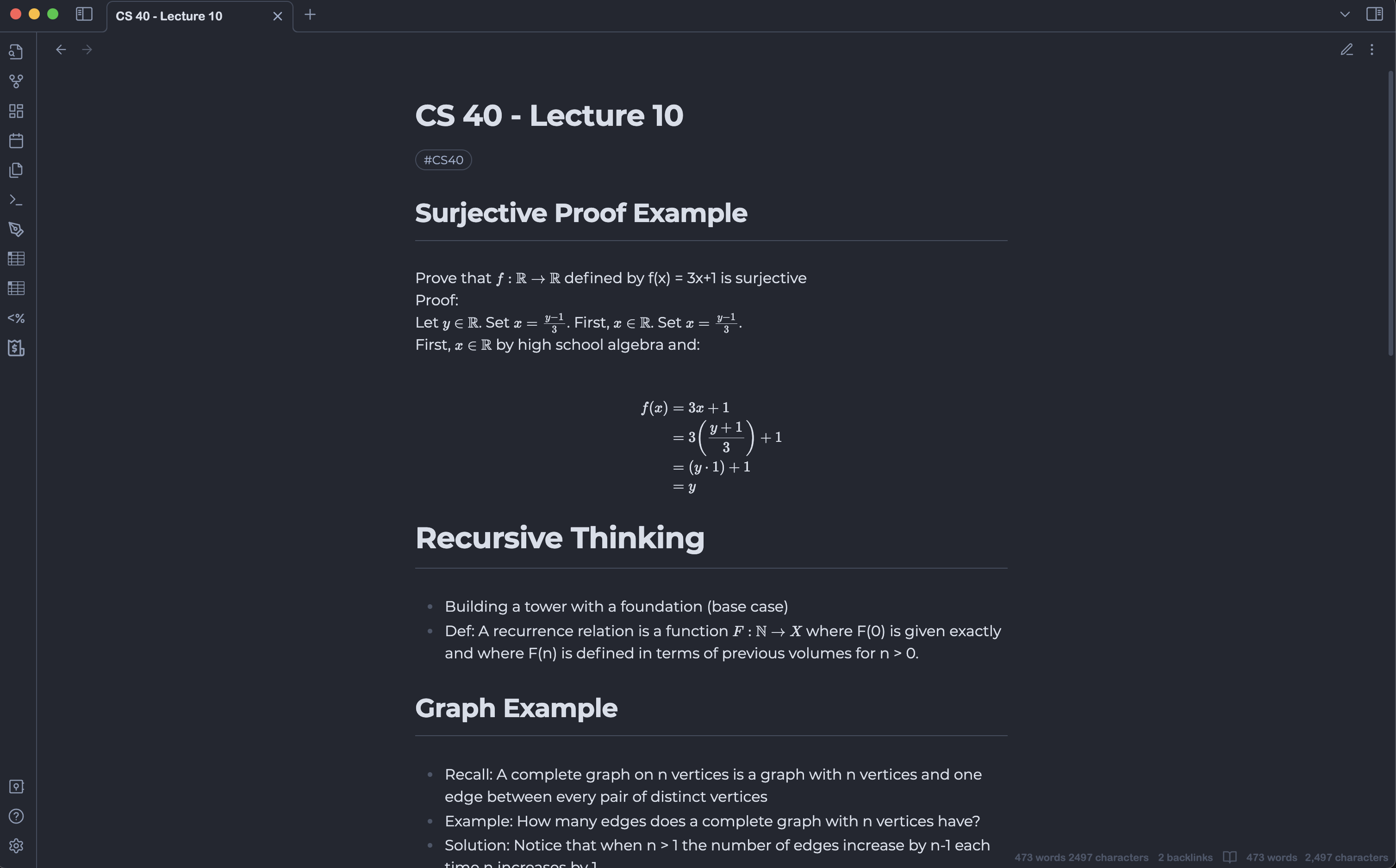
Currently I use the Minimal with Dark Mode Nord. You can set this in the Minimal Theme Settings and setting the Dark mode theme to Nord.
These are my style settings for sanctum, prism, and minimal. If you want to use these settings copy the settings, navigate to your style settings plugin in your settings, open the import menu, and paste in the my settings.
My Style Settings
{
 "sanctum@@color-accent-rgb-d": "83, 112, 159",
 "sanctum@@color-accent-rgb-l": "99, 149, 156",
 "sanctum@@dark-mode-contrast-mode": "sanctum-default-dark",
 "sanctum@@table-cell-border": true,
 "sanctum@@table-row-border": true,
 "sanctum@@table-column-border": true,
 "sanctum@@table-alternate-row": false,
 "sanctum@@table-alternate-column": false,
 "sanctum@@table-single-rows": false,
 "sanctum@@table-nums": false,
 "sanctum@@table-tabular-figures": false,
 "sanctum@@table-sticky-height": 600,
 "sanctum@@table-sticky-headers": false,
 "sanctum@@code-border": false,
 "sanctum@@code-lines": false,
 "sanctum@@syntax-highlighting": "nord",
 "sanctum@@active-line-accent": "transparent",
 "sanctum@@stendig": false,
 "sanctum@@calendar-dot@@dark": "#70B1FF",
 "sanctum@@calendar-dot-hover@@light": "#23505E",
 "sanctum@@calendar-dot-hover@@dark": "#4D718A",
 "sanctum@@link-color@@dark": "#5A6F9B",
 "sanctum@@clean-embeds": false,
 "obsidian-prism-theme@@highlight-text-accent-custom-dt": "#FFFFFF",
 "obsidian-prism-theme@@dark-accent-color-preset": "pt-accent-color-custom-dt",
 "obsidian-prism-theme@@highlight-text-accent-dt": "pt-highlight-text-custom-dt",
 "obsidian-prism-theme@@color-accent-base-dt": "#535A4E",
 "obsidian-prism-theme@@color-accent-tint-dt": "#B3BDB3",
 "obsidian-prism-theme@@color-accent-text-dt": "#A7B1A5",
 "obsidian-prism-theme@@pt-disable-callout-styling": false,
 "sanctum@@font-editor-theme": "\"\"",
 "obsidian-prism-theme@@color-schemes-dt": "pt-color-scheme-raven-dt",
 "sanctum@@hide-vault-title": false,
 "obsidian-prism-theme@@pt-file-explorer-folder-icon": false,
 "obsidian-prism-theme@@left-sidebar-tab-label-alignment": "pt-tab-label-left-sidebar-left",
 "obsidian-prism-theme@@pt-custom-vault-banner": false,
 "obsidian-prism-theme@@custom-vault-banner-horizontal-align": "pt-custom-vault-banner-justify-content-center",
 "obsidian-prism-theme@@file-explorer-left-margin": 0,
 "obsidian-prism-theme@@pt-pdf-dark-theme": false,
 "minimal-style@@inline-title-size": "2em",
 "minimal-style@@h1-size": "2.25em",
 "minimal-style@@h2-size": "2em",
 "minimal-style@@h3-size": "1.75em",
 "minimal-style@@h4-size": "1.5em",
 "minimal-style@@h5-size": "1.25em",
 "minimal-style@@h6-size": "1em",
 "minimal-style@@h5-variant": "normal",
 "minimal-style@@h6-variant": "normal",
 "minimal-style@@h4-variant": "normal",
 "minimal-style@@h4-weight": 600,
 "minimal-style@@h5-weight": 600,
 "minimal-style@@h6-weight": 600,
 "minimal-style@@h3-weight": 600,
 "minimal-advanced@@styled-scrollbars": true,
 "minimal-advanced@@cursor": "pointer",
 "minimal-style@@bg1@@dark": "#232731",
 "minimal-style@@bg2@@dark": "#323846",
 "minimal-style@@ax1@@dark": "#8CBCBB",
 "minimal-style@@heading-spacing": "0em",
 "minimal-style@@h2-l": true,
 "minimal-style@@h1-l": true,
 "minimal-style@@h3-l": true,
 "minimal-style@@h4-l": true,
 "minimal-style@@h5-l": true,
 "minimal-style@@h6-l": true,
 "minimal-style@@metadata-add-property-off": true,
 "minimal-style@@metadata-heading-off": true,
 "minimal-style@@metadata-dividers": false
}
Plugins
Plugins are community made extensions that can add additional functionality not included in base Obsidian.
Install and manage plugins using the community plugins section in your Obsidian options.
Here are some plugins I personally find useful:
Better Word Count: Adds more word count statistics, i.e hover to find word count of highlighted.
Calendar: Adds a calendar you can use to organize your daily notes.
Dataview: A plugin that allows query your notes like a relational database by their properties you set in the frontmatter.
Excalidraw: Lets you draw in Obsidian! Useful for jotting down quick notes or creating simple graphs. Very useful in conjunction with the Canvas feature.
Execute Code: Adds the ability to run code inside markdown code blocks, useful for notes. note: to add a C++ execute code block use ‘run-cpp’… this one cost me a couple of hours
Markdown Table Editor: Adds GUI to create and edit markdown tables.
Style Settings: Adds the ability to easily modify your theme.